· AI HR Bot · 4 min read
What a Slack HR bot can read — and what it can't
Before an HR bot gets near a workspace, somebody asks the right question: can this thing read our messages? Slack answers it precisely, on the consent screen, in a language most people close without reading — scopes. Here is how to read that screen, with our own request as the worked example, because every permission AI HR Bot asks for is named publicly, built as one list you can diff against what Slack shows you.
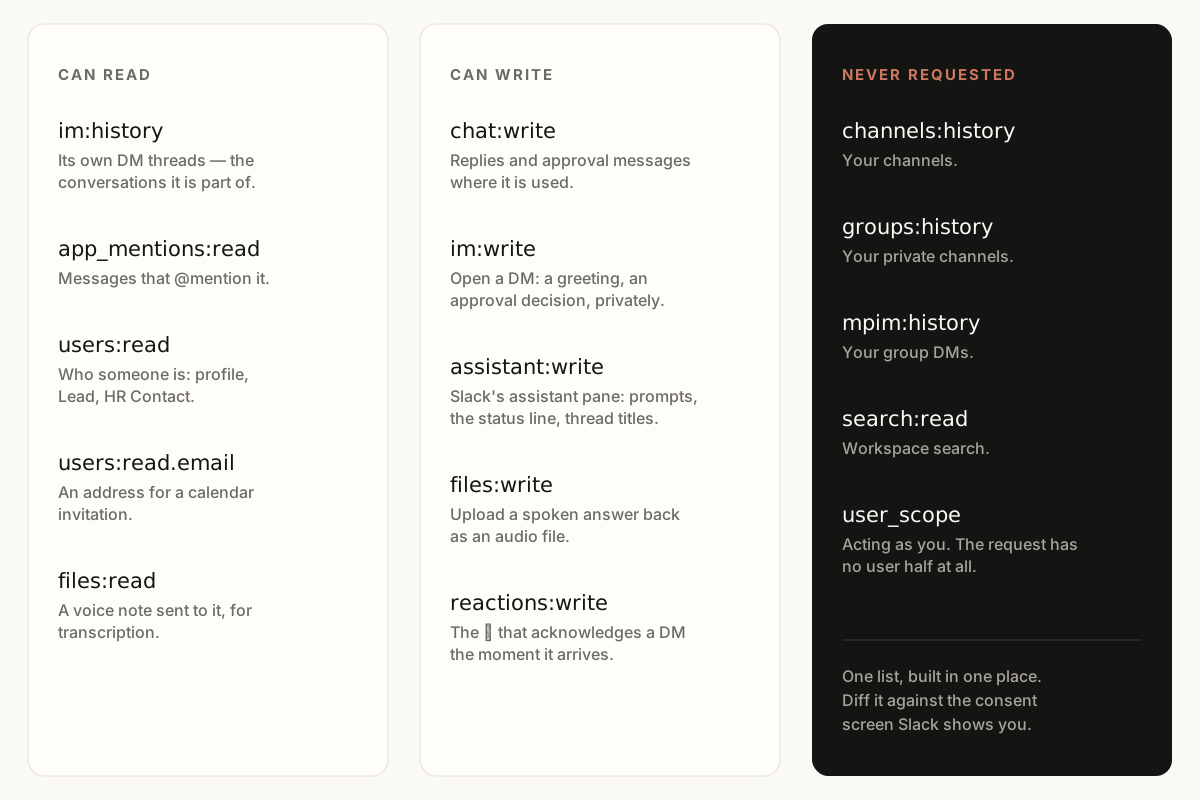
The two message scopes
The list carries exactly two permissions that read messages. im:history lets the bot read the direct-message threads it is part of — the conversations with the bot itself, so an exchange keeps its context. app_mentions:read lets it see a message that @mentions it in a channel, so it can answer.
Everything else in your Slack is outside the request. There is no channels:history, no groups:history, no mpim:history — the bot cannot read your channels, your private channels, or your DMs with other people, even in a channel it has been added to. And the request has no user half at all: without a user_scope, it never acts as you.
What the rest of the list does
Five permissions write. chat:write posts replies and approval messages where the bot is used. im:write opens a direct message — a greeting, an approval decision delivered privately. assistant:write runs Slack's own assistant pane, with its starting prompts and its status line. files:write uploads a spoken answer back into the conversation as audio. reactions:write adds the :eyes: acknowledgment the moment a DM arrives.
Three read things that are not messages. users:read matches a Slack account to an Employee record and resolves their Lead and HR Contact. users:read.email reads a coworker's email address, which is what a Google Calendar invitation has to be addressed to. files:read downloads a voice note an Employee sent, so it can be transcribed.
Fixed on install day
Slack fixes what an app may do at the moment you install it. Five of these permissions arrived with voice, meetings and the assistant pane, so a Workspace installed before those shipped does not hold them — and each dependent feature stays quiet rather than failing loudly, until an HR Head re-authorizes. Re-authorizing widens what the bot may do and removes nothing.
How to read any bot's consent screen
The same checks work on any app, ours included. Find the history scopes first: *:history is the class that reads conversations, and every entry in it should have a reason the vendor can say out loud. Check whether the request has a user section — bot scopes act as the bot, a user_scope acts as you. And prefer a vendor who names the whole request on a public page, because a list you can diff is a claim you can check, and a list you cannot get in writing is a claim you are taking on trust.
One thing scopes do not answer: they say what may be read, not what is stored or where it goes onward. That half of the question — the third parties we send data to, and exactly what each receives — is the security page's job, and it names them one by one.
That page exists for the person this post was probably forwarded to. If the list above reads the way an HR tool should, the install guide is the next step — and the consent screen will show you the same request.
Scopes are one of five questions worth putting to any vendor. The other four — and what this bot does with the little it is allowed to read — are in what a Slack HR chatbot answers, and what it refuses to guess.
Connects to your Slack in about 2 minutes.